
Chat that's built for teaching, not just talking
Real-time messaging with LaTeX math, voice notes, file sharing, image annotation, broadcast controls, and live session integration — all inside your academy.
Everything included — no add-ons, no upgrades required
Teacher
Solve: x² + 5x + 6 = 0
Priya
x = −2 or x = −3
Arjun
Using the factor method: (x+2)(x+3) = 0
Messages arrive the moment they're sent — zero lag
Whether you're in the middle of a lecture or answering a question after class, messages reach everyone instantly. Pedagio keeps your class in sync even on slow or unstable connections — students never miss a message and never need to refresh the page.
Instant delivery for everyone
New messages reach every online member the moment they are sent — no refresh, no delay.
Stays connected automatically
If the connection hiccups, the chat recovers on its own. Students don't notice and nothing is lost.
Works on slow connections too
Even on patchy mobile data or weak Wi-Fi, the chat keeps working and stays up to date.
Type equations. See them rendered. Instantly.
Type a LaTeX expression and it renders instantly as a beautifully formatted equation — right inside the chat. Fractions, integrals, summations, matrices, Greek letters, limits — anything you would write on a whiteboard renders just as clearly on screen.
Inline math with $…$
Render a formula mid-sentence without breaking the flow of text — e.g. "Solve for $x$ where $x^2 + 5x + 6 = 0$".
Display blocks with $$…$$
Centred, full-width formula blocks for equations that deserve their own line.
Live preview while typing
The rendered formula appears in the input box before you send — catch errors before students see them.
Input
$$x = \frac{-b \pm \sqrt{b^2-4ac}}{2a}$$Rendered
x = (−b ± √(b²−4ac)) / 2a
Input
$$\int_0^\infty e^{-x^2}\,dx = \frac{\sqrt{\pi}}{2}$$Rendered
∫₀^∞ e^(−x²) dx = √π / 2
Input
$$\begin{pmatrix}a&b\\c&d\end{pmatrix}$$Rendered
[ a b ] [ c d ]
Full LaTeX support — fractions, limits, sums, Greek letters, vectors, and more
Chemical equations and formulas, rendered correctly
Chemistry teachers can write balanced equations, reaction arrows (→ and ⇌), subscripts, superscripts, electron configurations, and molecular formulas using LaTeX notation. No more typing plain text like "H2O" — students see properly formatted chemical equations.
Balanced equations with arrows
Write reaction arrows for one-way and reversible reactions — they render exactly as they appear in textbooks, not as plain text.
Proper subscripts & superscripts
Get CO₂, H₂O, and NH₃ with correct formatting — no more typing plain text like H2O or CO2.
Electron configurations
Orbital notation like 1s² 2s² 2p⁶ renders cleanly — perfect for atomic structure and periodic table lessons.
Input
$\text{CH}_4 + 2\text{O}_2 \rightarrow \text{CO}_2 + 2\text{H}_2\text{O}$Rendered
CH₄ + 2O₂ → CO₂ + 2H₂O
Input
$\text{N}_2 + 3\text{H}_2 \rightleftharpoons 2\text{NH}_3$Rendered
N₂ + 3H₂ ⇌ 2NH₃
Input
$\text{HCl} + \text{NaOH} \rightarrow \text{NaCl} + \text{H}_2\text{O}$Rendered
HCl + NaOH → NaCl + H₂O
Input
$1s^2\,2s^2\,2p^6\,3s^2\,3p^6$Rendered
1s² 2s² 2p⁶ 3s² 3p⁶
Subscripts, superscripts, arrows, ionic charges — all supported via LaTeX syntax
Write diagrams in text — they render as visuals
Wrap any Mermaid code in a ` ```mermaid ``` ` block and Pedagio renders it as a proper diagram — inline in the message thread. No image exports, no external tools.
flowchart TD
  A[Start] --> B{Decision}
  B -->|Yes| C[Result A]
  B -->|No| D[Result B]
```
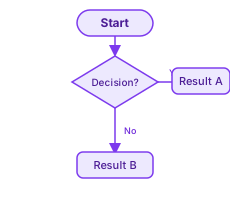
Decision trees, algorithms, process steps
sequenceDiagram
  Student->>Teacher: Question
  Teacher->>Student: Answer
  Student->>Teacher: Follow-up
```
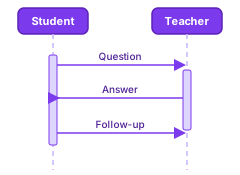
Interactions, protocols, communication flows
mindmap
  root((Topic))
    Subtopic A
      Detail 1
    Subtopic B
      Detail 2
```
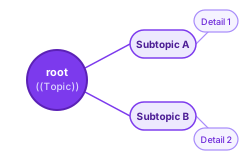
Brainstorming, topic maps, lesson outlines
All supported diagram types
Chapter 12 Notes.pdf
2.4 MB · PDF
diagram_forces.png
480 KB · Image · Tap to expand
Voice note · 0:24
Share anything — images, PDFs, videos, voice notes
Students and teachers can attach files up to 10 MB per message. Images display inline with a click-to-expand viewer. Videos play directly in chat. Audio messages appear as a player. PDFs and documents show a clean download card. Photos shared in chat have location data automatically removed before upload — keeping your students safe.
Images, video & audio
Photos, GIFs, videos, and audio files play directly in the chat — no downloading, no leaving the conversation.
PDFs & Word documents
Documents show a clean download card with the file name and type. No leaving the chat.
Photo privacy protection
Location data and device information are automatically removed from every photo before it is shared — students stay private.
Teacher
Voice note · 0:34
Priya
Voice note · 0:12
Hold mic to record · No app needed
Record and send voice notes with one tap
Sometimes typing isn't the right medium — especially for pronunciation feedback, quick explanations, or when you're on a phone. Tap the microphone, record, and send. Voice messages appear inline as an audio player; students can listen at their own pace.
One-tap recording
Hold to record, release to send — works directly in the browser, no app download or extra setup needed.
Inline audio playback
Voice messages appear as audio players right in the chat — students listen at their own pace, no download required.
Works on any device
Voice recording and playback works on phones, tablets, and computers — nothing to install.
Draw on images and send annotated feedback
Click on any image in the chat to open the annotation canvas. Draw freehand, add text labels, highlight areas — then send the annotated version as a new message. Perfect for marking up student work, circling errors in equations, or pointing to specific parts of a diagram.
Canvas annotation editor
Full drawing tools: freehand pen, text overlay, shapes. Opens directly from any image in the chat.
Send as new message
The annotated image is sent as a fresh message in the thread — the original stays untouched.
Works for any role
Teachers can mark up student submissions; students can annotate and ask targeted questions about specific parts.
Teacher · 10:15 AM
What is Newton's 3rd Law? Give an example from daily life.
Teacher: What is Newton's 3rd Law?...
Priya · 10:18 AM
Every action has an equal and opposite reaction.
Teacher: What is Newton's 3rd Law?...
Arjun · 10:19 AM
Example: When you push a wall, the wall pushes back!
Tap any quoted preview to jump to original →
Reply directly to any message — keep context clear
In a busy class chat, context gets lost fast. The reply feature lets anyone quote a specific message — the original is shown as a preview with the sender's name. Tap the preview to jump back to the original message in the thread. No more 'what are you referring to?'
Quoted reply preview
A snippet of the original message is shown with the sender's name — always clear who you're responding to.
Click to scroll to original
Tap the quoted preview to jump instantly to the original message — even if it's hundreds of messages back.
Green border highlight
The original message gets a green left border highlight when you jump to it, so it's impossible to miss.
Teacher
The coefficient of friction between rubber and road is 0.7.
Teacher
Friction is a contact force — it opposes relative motion.
Arjun
Does friction act on fluids too?
Find any message instantly with in-chat search
Press Cmd+F (or Ctrl+F) from anywhere in the chat to open the search bar. Type a keyword, and every matching message is highlighted. Navigate between matches with Enter or the arrow buttons. The chat auto-scrolls to each result. Press Escape or X to close and return to the latest messages.
Keyboard shortcut search
Cmd+F / Ctrl+F opens the search bar — same muscle memory as searching a webpage or document.
Live match highlighting
Every match highlighted in yellow; the active match in a brighter shade. Count shown as "3 of 12 matches".
Navigate between results
Jump forward and back through all results with Enter / Shift+Enter or the up/down arrow buttons in the search bar.
Turn any group into a one-way announcement channel
Toggle Broadcast Mode on a group and it becomes teacher-only for posting. Students can still read every message and see all shared resources — but the chat becomes noise-free. Ideal for resource-sharing groups, homework channels, or cohorts where you want to prevent chatter.
Teachers-only posting
In Broadcast Mode, only the academy owner and assigned teachers can send messages. Students are read-only.
Amber indicator banner
A clear amber banner at the top of the chat shows "Broadcast channel — only teachers can post" so students understand.
Toggle any time
Switch any group in or out of Broadcast Mode instantly — no disruption to your existing messages.
Pin important information at the top of every chat
Set a pinned announcement for any group — it stays locked at the top, always visible, even as new messages scroll by. Perfect for exam dates, homework deadlines, Zoom links, or any other info students should never miss. Edit or remove it at any time.
Always-visible banner
The announcement appears as a fixed amber banner above the message stream — it doesn't scroll away.
Up to 500 characters
Enough space for a full assignment description, link, or set of instructions.
Edit without reposting
Update the announcement in place — no need to delete and repost. The banner refreshes immediately.
Reach every student in your academy with one message
The Owner Broadcast lets you send a single message to all groups in your academy simultaneously — or target all groups a specific student is enrolled in. Perfect for school closures, holiday greetings, urgent exam updates, or any all-school communication. Optional pinning keeps the message visible at the top of every group.
All-academy blast
One click sends your message to every active group in your tenant — no copy-pasting.
Target a specific student
Send to all groups where a chosen student is enrolled — useful for individual parent communications.
Pin the blast message
Optionally mark the broadcast as pinned so it appears as a persistent banner in all recipient chats.
Your live class and your chat live in the same place
Pedagio chat knows when a session is happening. When a class goes live, a green banner with a Join button appears at the top. Before class, an upcoming session notice shows the scheduled time. After class, the recording is accessible directly from the chat sidebar — no links to hunt for.
Live class join banner
Green banner with animated live dot and one-click Join button appears when a session starts — for Zoom, Meet, Teams, or Zoho.
Upcoming session notice
Blue banner shows the next scheduled class time so students always know when to come back.
Session panel with recordings
The "Sessions" tab in the chat sidebar lists all past recordings and lets teachers add new ones instantly.
Every role sees exactly what it should
Permissions are enforced throughout the platform — not just what's visible on screen. Every person sees and can do exactly what their role allows, nothing more.
| Role | Description | Read | Post | Post in Broadcast |
|---|---|---|---|---|
| Owner | Academy admin | |||
| Teacher | Assigned to group | |||
| Student | Enrolled member | — | ||
| Parent | Observer, read-only | — | — |
Protected at every level — not just the screen
Your chat data is protected end-to-end. Students can only see the groups they are enrolled in. Parents can read messages but never post. Permissions are built into the foundation of the platform — not just the interface people see.
Useful shortcuts built right into the message box
Type a slash command to surface session info without leaving the chat. Quick, keyboard-friendly, no clicking around the UI.
\schedule
View upcoming sessions
Shows all scheduled sessions for the group — date, time, and provider (Zoom, Google Meet, etc.).
\link
Get the next session link
Returns the join URL for the next upcoming session so students can bookmark it or add to calendar.
Mute when you need to focus. Unmute when you're back.
A single mute toggle in the chat header silences the notification sound for all new messages in that group. The preference is saved in the browser and persists between sessions — no need to re-mute every time you reload.
Sound alert on new messages
A subtle chime plays when a new message arrives in an unmuted chat — easy to hear without being disruptive.
One-click mute per group
Toggle mute in the chat header. Your preference is remembered — no need to set it again after closing the browser.
Notifications on
Notifications muted
Saved in browser · No need to re-mute on reload
Educators who tried it, stayed with it
Because teaching is easier when communication actually works.
"The LaTeX rendering changed everything for me. I teach calculus — being able to type a formula in chat and have it render properly is something I didn't know I needed until I had it."
Rajeev Nair
Mathematics tutor, Online
"Broadcast mode for our announcements group is exactly right. Parents get homework updates without students cluttering the channel. Simple toggle, massive difference."
Sunita Kapoor
Founder, Kapoor Learning Centre
"My students love the voice message feature. They record questions after class and I respond with annotated images. It's like async tutoring, built right into the same tool."
Carlos Mendez
Spanish language tutor
Common questions about classroom chat
Everything you need to know before you start.
Messages are delivered the moment they are sent. Whether you are on a fast connection or a slow one, the chat stays in sync — students never miss a message and never need to refresh the page. Even on unstable mobile data, the chat keeps working automatically.
Yes. Students and teachers can send images (JPEG, PNG, GIF, WebP), videos (MP4, WebM), audio files, PDFs, and Word documents — up to 10 MB per file. All images are automatically stripped of EXIF metadata before upload to protect sender privacy.
Broadcast Mode turns a group chat into a one-way announcement channel. Only teachers and the academy owner can post; students can read but not reply. It's ideal for homework announcements, class resources, or groups where you don't want student chatter. You can toggle it on or off at any time.
The Owner Broadcast lets you send a single message to every group in your academy simultaneously — or target all groups a specific student belongs to. This is perfect for school-wide announcements, holiday notices, or urgent updates without having to paste into each group manually.
Parents have read-only access to the chats of groups their children are enrolled in. They can view all messages, session schedules, and shared resources — but cannot post messages. This keeps parents informed without disrupting the class flow.
Type a LaTeX formula between $…$ for inline or $$…$$ for a display block and it renders as a formatted equation when sent — fractions, integrals, Greek letters, and more. For diagrams, write a diagram block and Pedagio renders it as a proper visual — flowcharts, sequence diagrams, Gantt charts, mind maps, and more. A live preview appears in the message box as you type so you can catch errors before students see them.
Yes. Press Cmd+F (or Ctrl+F on Windows) to open the in-chat search bar. It does a case-insensitive match across the loaded message history, highlights every result, and lets you jump between matches with Enter or the arrow buttons.
Yes. There's a mute toggle in the chat header. When muted, the notification sound is silenced for new messages. The preference is saved in the browser so it persists across sessions. You can un-mute at any time.
Still have questions? Talk to us →
Give your students the chat experience they deserve
LaTeX, voice notes, file sharing, broadcast controls, session integration — all in one place. Set up your academy in 30 minutes.
Start free — no credit card →Free forever plan · Cancel any time